I) Unlocker:


For example here is a dialog box from an application. As you can see most of the controls on this dialog box are disabled and therefore can not be pressed or edited:
Here is the same dialog but the “Windows Enabler” is used to enable some of the controls. We can now use these controls but how the software will react can vary greatly. Sometimes the results are disastrous, YOU HAVE BEEN WARNED!!
If you've ever been unable to delete a file in Windows, and can't figure out what program's using it, Unlocker is the solution. Have you ever seen these Windows error messages?
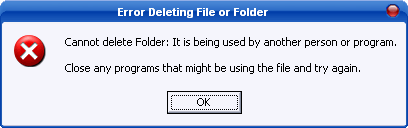
- Cannot delete folder: It is being used by another person or program
- Cannot delete file: Access is denied
- There has been a sharing violation.
- The source or destination file may be in use.
- The file is in use by another program or user.
- Make sure the disk is not full or write-protected and that the file is not currently in use.
Unlocker can help! Simply right-click the folder or file and select Unlocker. If the folder or file is locked, a window listing of lockers will appear. Simply click Unlock All and you are done!
Unlocker is the solution!
1. Simply right click the folder or file and select Unlocker
1. Simply right click the folder or file and select Unlocker
2. If the folder or file is locked, a window listing of lockers will appear
3. Simply click Unlock All and you are done!
Similar programs and why Unlocker is better
Of course I only compare here the unlocking features. Process Explorer and Take Control are very good programs featuring much more things than just unlocking folders. The goal of this list is not really to pretend Unlocker is better but instead to provide a list of all other alternative programs in case you have some difficulties with Unlocker.

Here is the link to the official download site of the Unlocker: http://www.emptyloop.com/unlocker/#download
II)Windows Enabler:
Windows Enabler is a program that runs on Microsoft Windows 95/98/Me/NT4.0/2000 and WinXP. It allows the user to enable disabled windows and controls such as buttons and tick boxes and choose menu options that would normally be disabled. This is obviously a very dangerous practice if used recklessly but having said that, you’d be surprised at how often it comes in handy. Windows Enabler has a very simple user interface; it appears as an icon in the system tray and can be turned on and off simply by clicking on it. Windows enabler may be freely distributed as long as the entire package (or a superset) is distributed unaltered.
Using Windows Enabler:
To run Windows Enabler execute the file “Windows Enabler.exe”; the simplest way to do this is to place a shortcut to it somewhere on your system such as the desktop, the start menu or the “Startup” program group. When Windows Enabler is running you should see one of the following icons in the system tray:  or
 . To exit the Windows Enabler right click on the icon and choose “Quit” from the popup menu. An about box can be displayed by right clicking on the icon and choosing “About” from the popup menu. Left clicking on the icon toggles the Windows Enabler on and off. When the Windows Enabler is active the word “On” is superimposed on the icon as seen in the second icon above.
or . To exit the Windows Enabler right click on the icon and choose “Quit” from the popup menu. An about box can be displayed by right clicking on the icon and choosing “About” from the popup menu. Left clicking on the icon toggles the Windows Enabler on and off. When the Windows Enabler is active the word “On” is superimposed on the icon as seen in the second icon above. For example here is a dialog box from an application. As you can see most of the controls on this dialog box are disabled and therefore can not be pressed or edited:

Here is the same dialog but the “Windows Enabler” is used to enable some of the controls. We can now use these controls but how the software will react can vary greatly. Sometimes the results are disastrous, YOU HAVE BEEN WARNED!!


No comments:
Post a Comment